Many districts track Flex Time (Flexible Professional Development Time) to monitor district-specific professional learning requirements outside of — or in addition to — Act 48. Flex Hours are frequently used to track progress toward a required total. Once educators meet that requirement, they are often excused from a scheduled inservice day.
Flex Hours may include:
District-led professional development
Internal initiatives and training
Workshops that do not require Act 48 submission
Activities that are tracked locally but not (necessarily) reported to PERMS
While some districts attempt to manage Flex Hours using spreadsheets or manual processes, Comply provides a centralized, automated solution that allows you to:
Assign and track Flex Hours across all staff
Configure Flex independently from Act 48
Maintain documentation and proof of completion
View live summary reports of Flex Hours earned
Export reports for building-level or district-level analysis
How to Track Flex Hours in Comply
Flex Hours can be tracked in both:
Tracking Flex Hours on a Compliance Item
Use this option when the district assigns or manages the activity centrally (e.g., district PD session, training, workshop).
Step 1: Edit or Build a Compliance Item
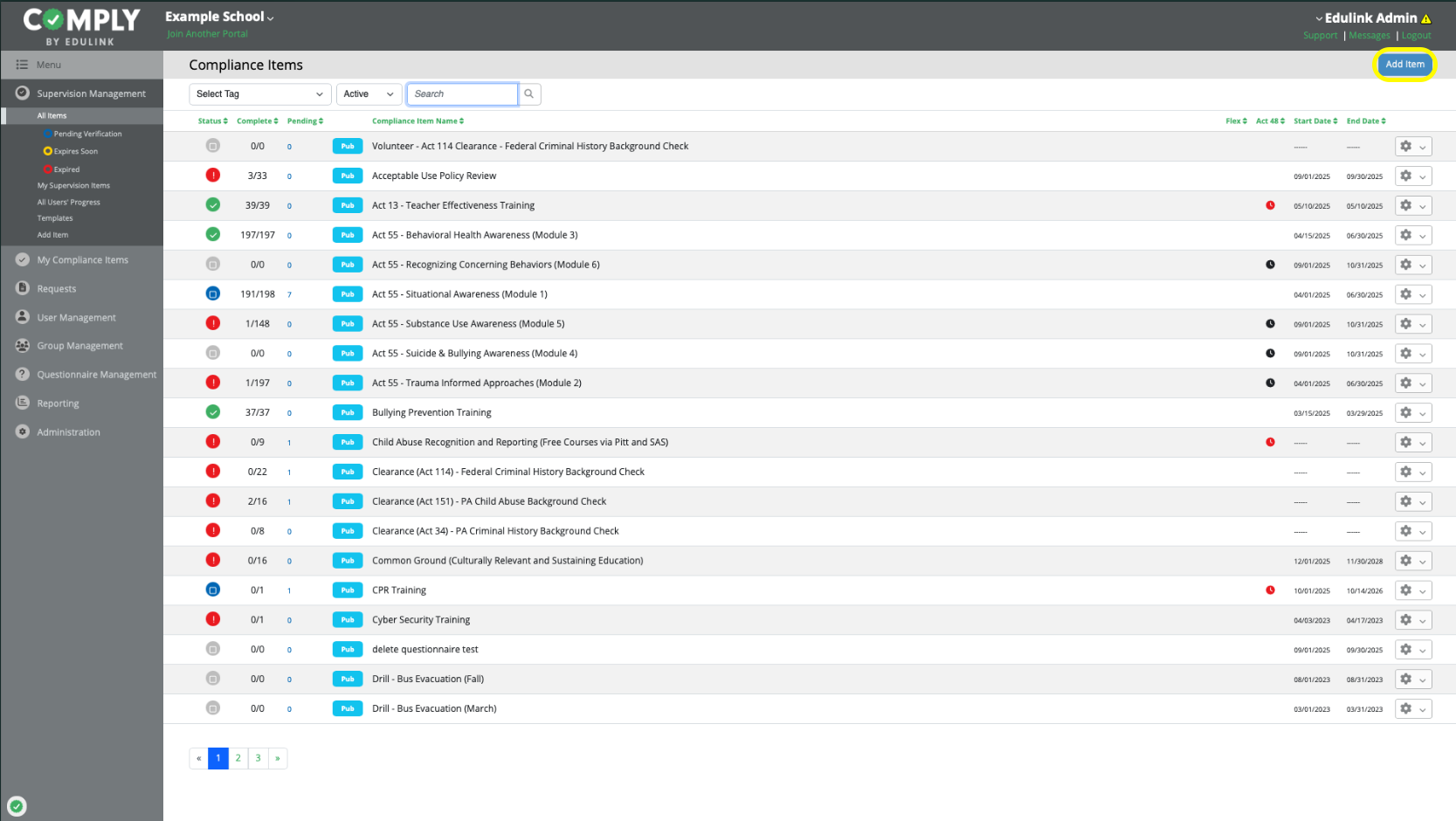
Go to Supervision Management → All Items
Edit an existing item OR click Add Item
Step 2: Enable Flex
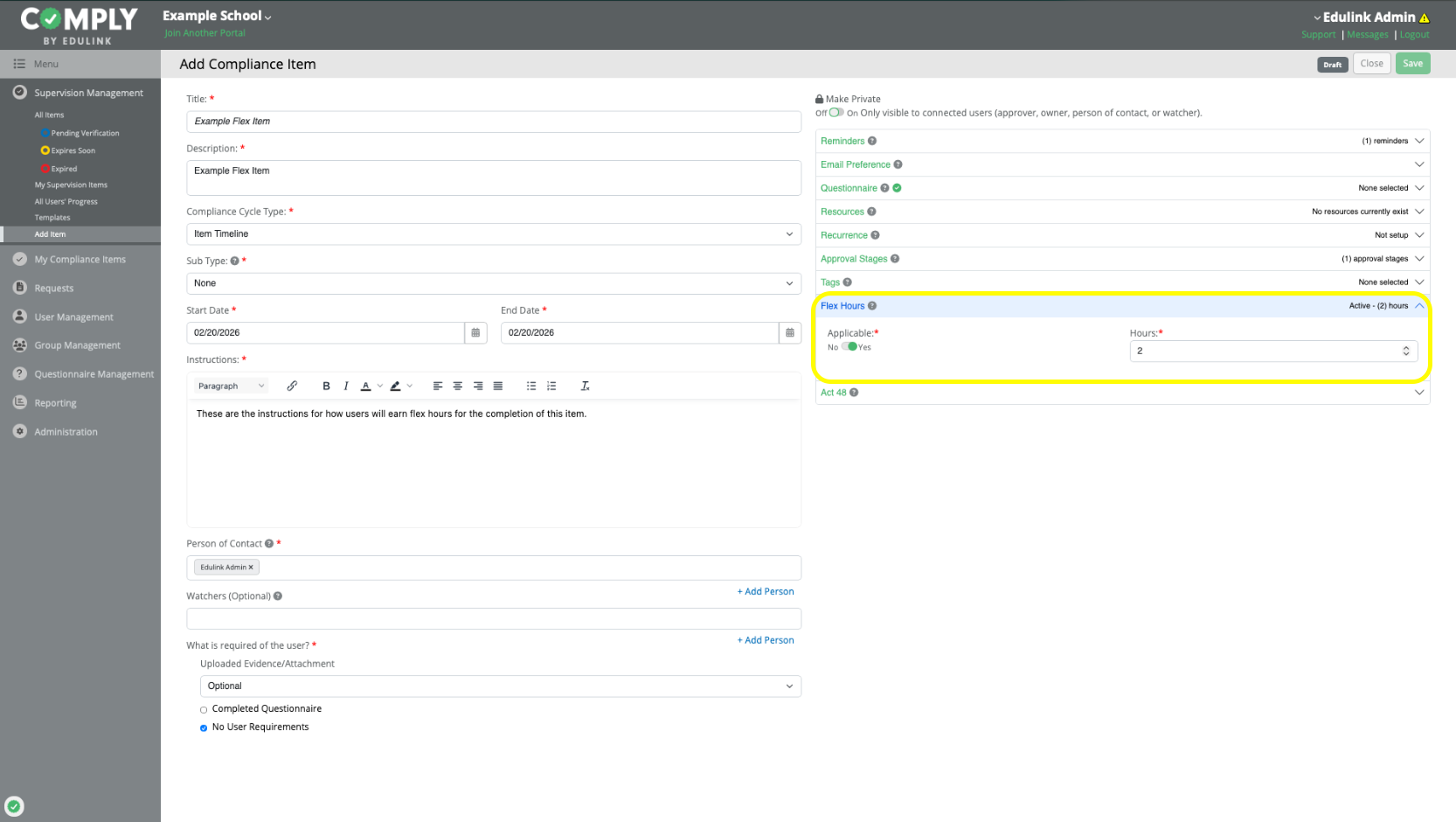
Locate the Flex section or tab
Turn Flex Applicable = Yes
Enter the number of Flex Hours
Fill out the remaining details for your Flex item.
Save and Publish (if applicable)
Note:
- An approval stage is required for compliance items that reward flex hours.
- Compliance items that reward flex hours are not required to be configured for Act 48
Step 3: Review How Flex Appears
Once the item is published:
Flex will be visible in the item’s details.
Approved users will earn Flex Hours based on the configured value.
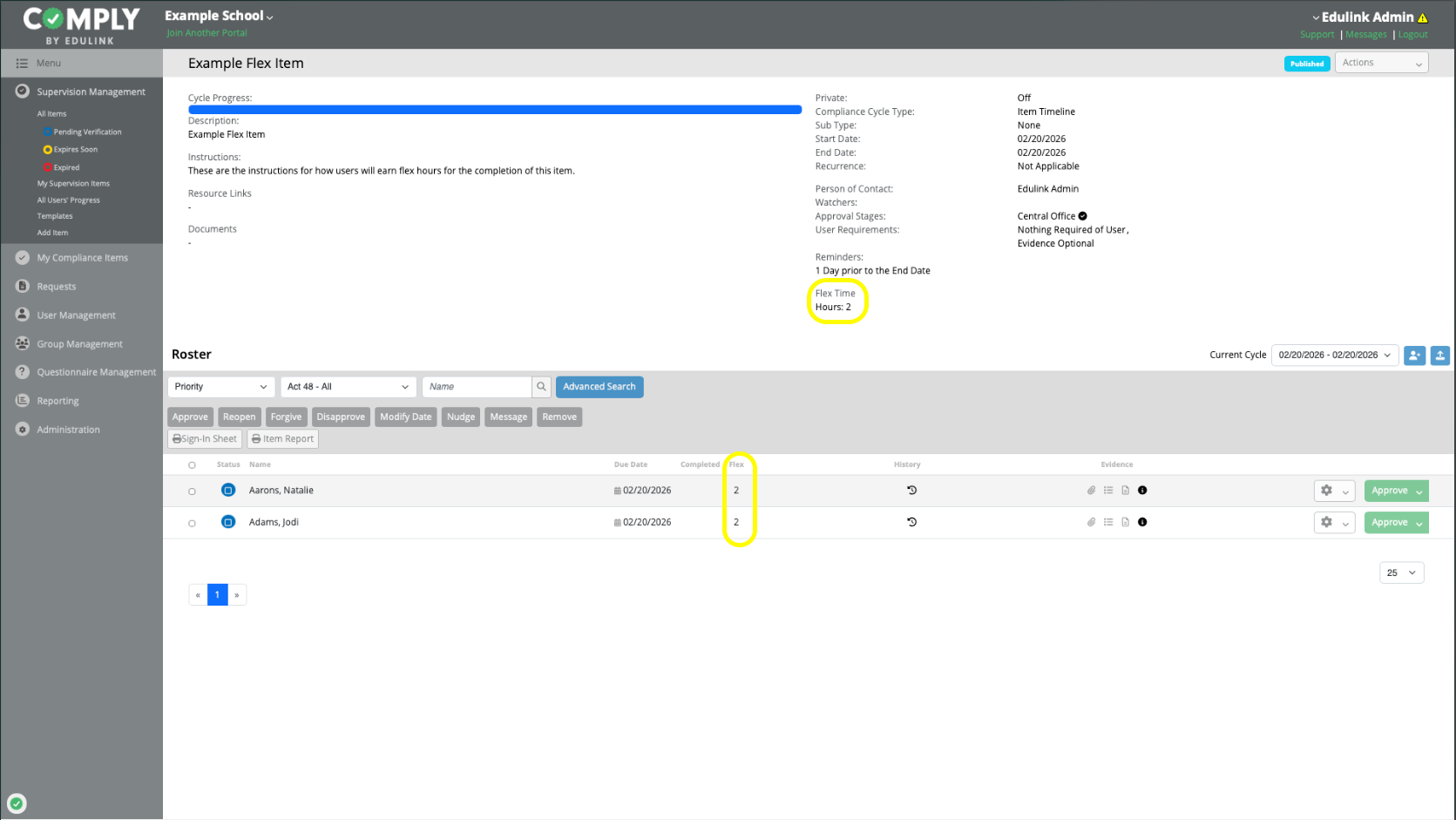
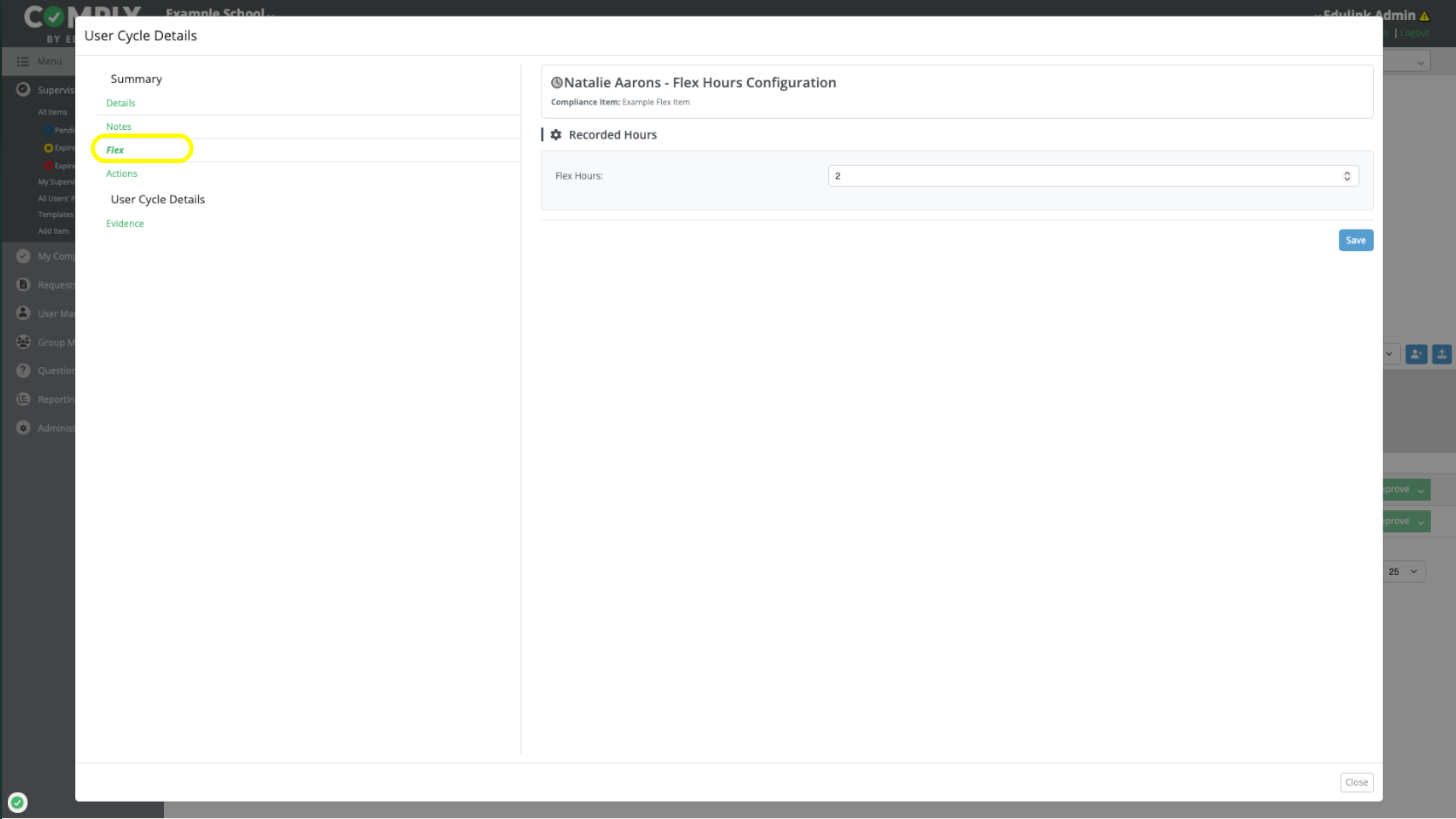
Note: The number of flex hours awarded to each user can be configured individually by clicking on the "i" icon to view the user details.
Tracking Flex Hours on a Request Item
Use this option when employees initiate the activity (e.g., conference attendance, credit approval, workshop request).
Step 1: Edit or Build a Request Item
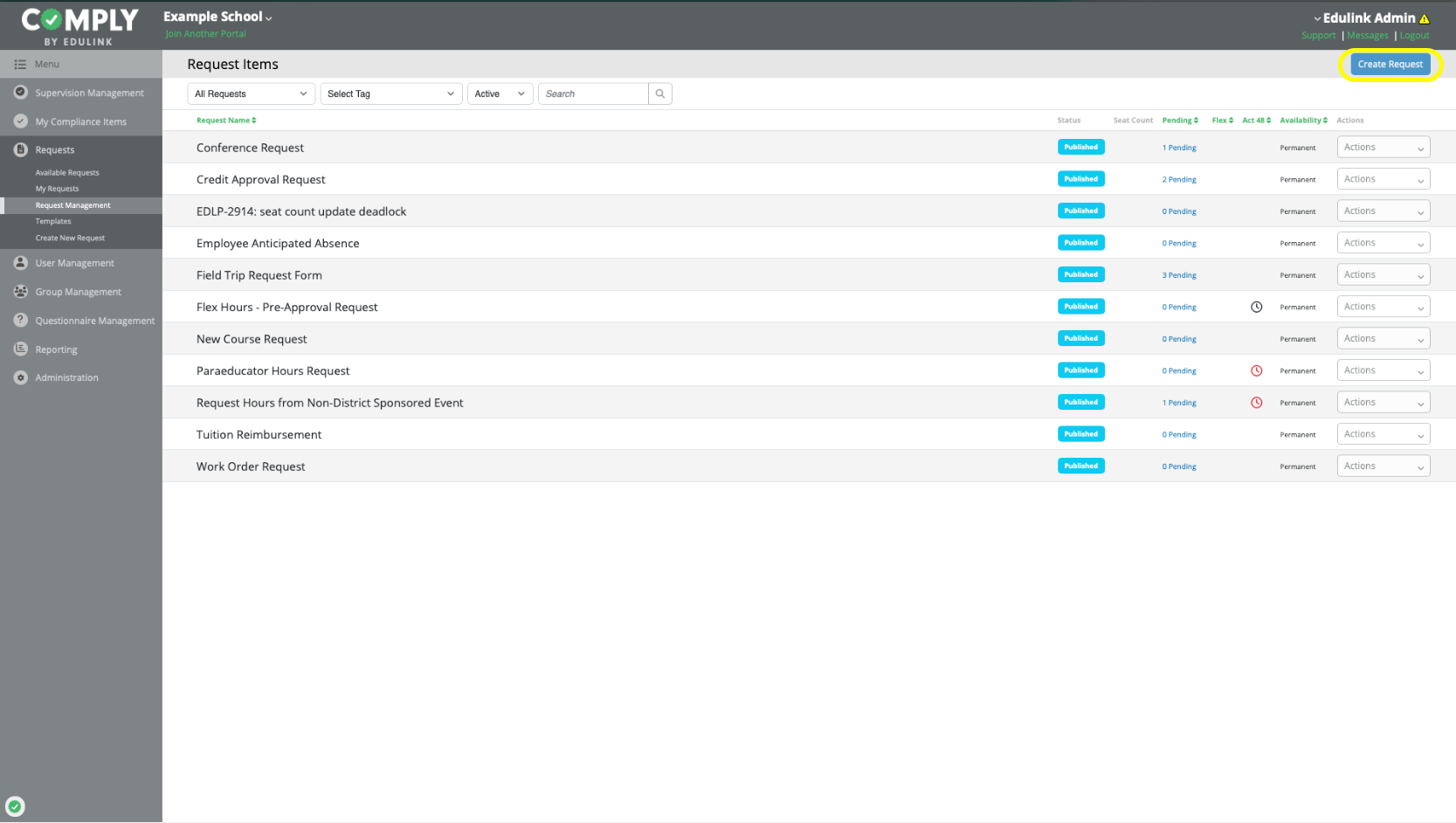
Go to Requests → Request Management
Open an existing request item OR Create Request
Step 2: Enable Flex on the Request
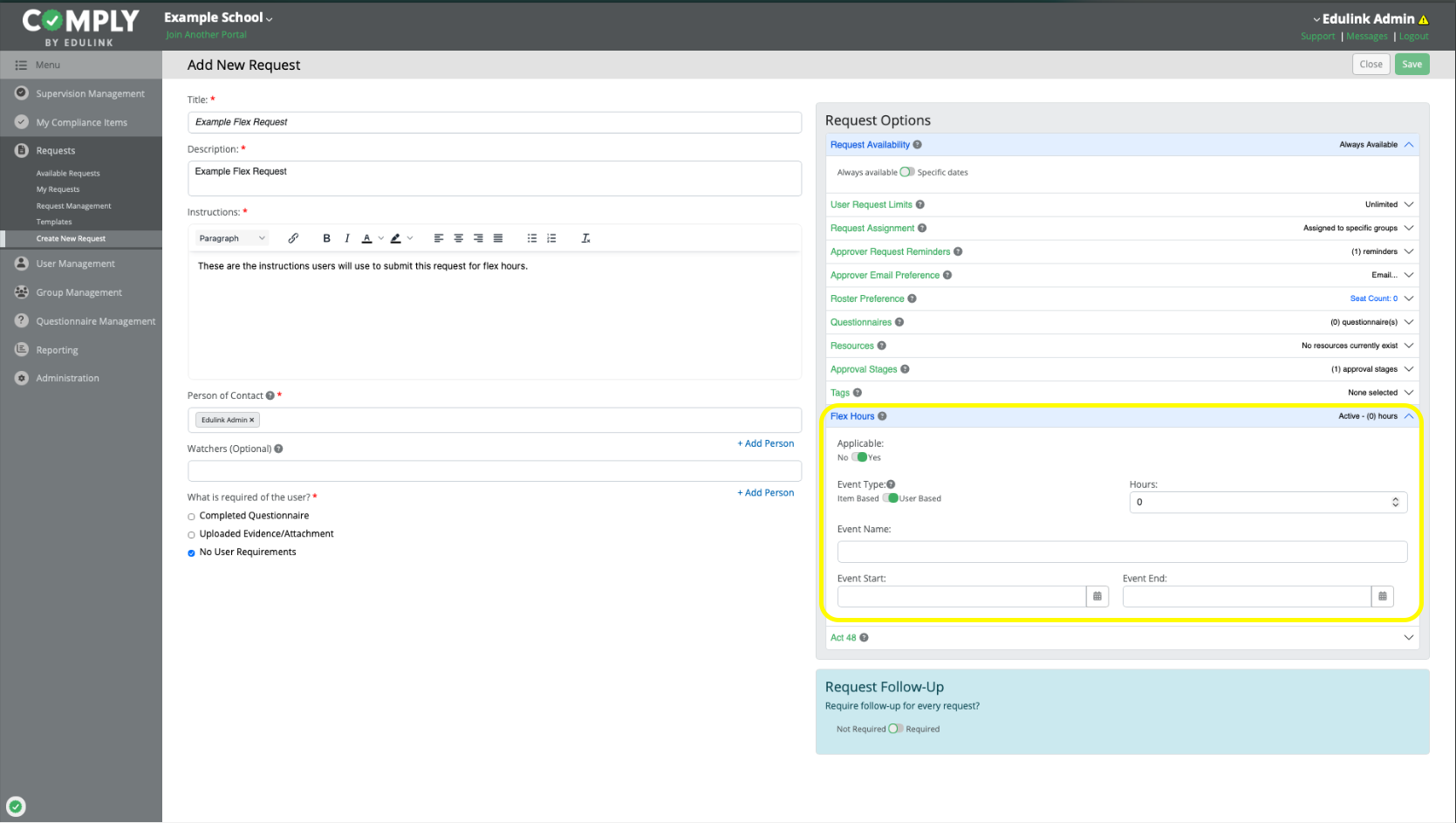
Locate the Flex section
Turn Flex Applicable = Yes
Choose how Flex will be tracked (if applicable):
Item-Based – hours are set by the district on the item
User-Based – hours/details are entered by the employee as part of the request
Configure the rest of the item
Save and Publish
Note:
- Approval stages are required on requests that reward flex hours
- Follow-Up stages can be configured with the flex item
- Requests that reward flex hours are not required to be configured for Act 48
- You can provide users with suggested/pre-filled event details for user-based flex requests by completing the Hours, Event Name and Event date fields. Note that users can choose to accept or override these suggested values
Step 3: Follow the Approval Workflow
Once a request is:
Submitted
Reviewed
Approved
Flex Hours will be awarded based on the item / user configured value.
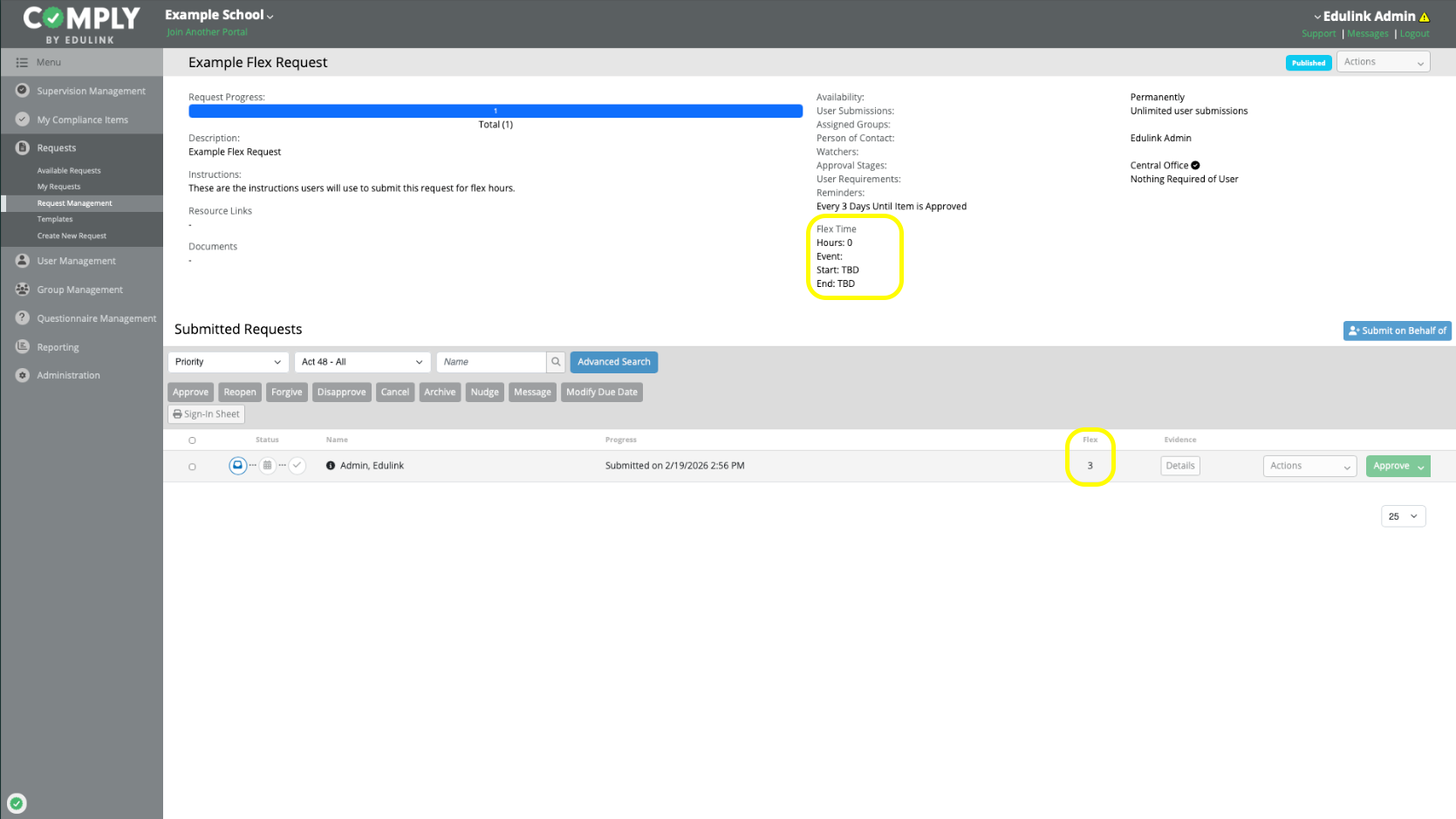
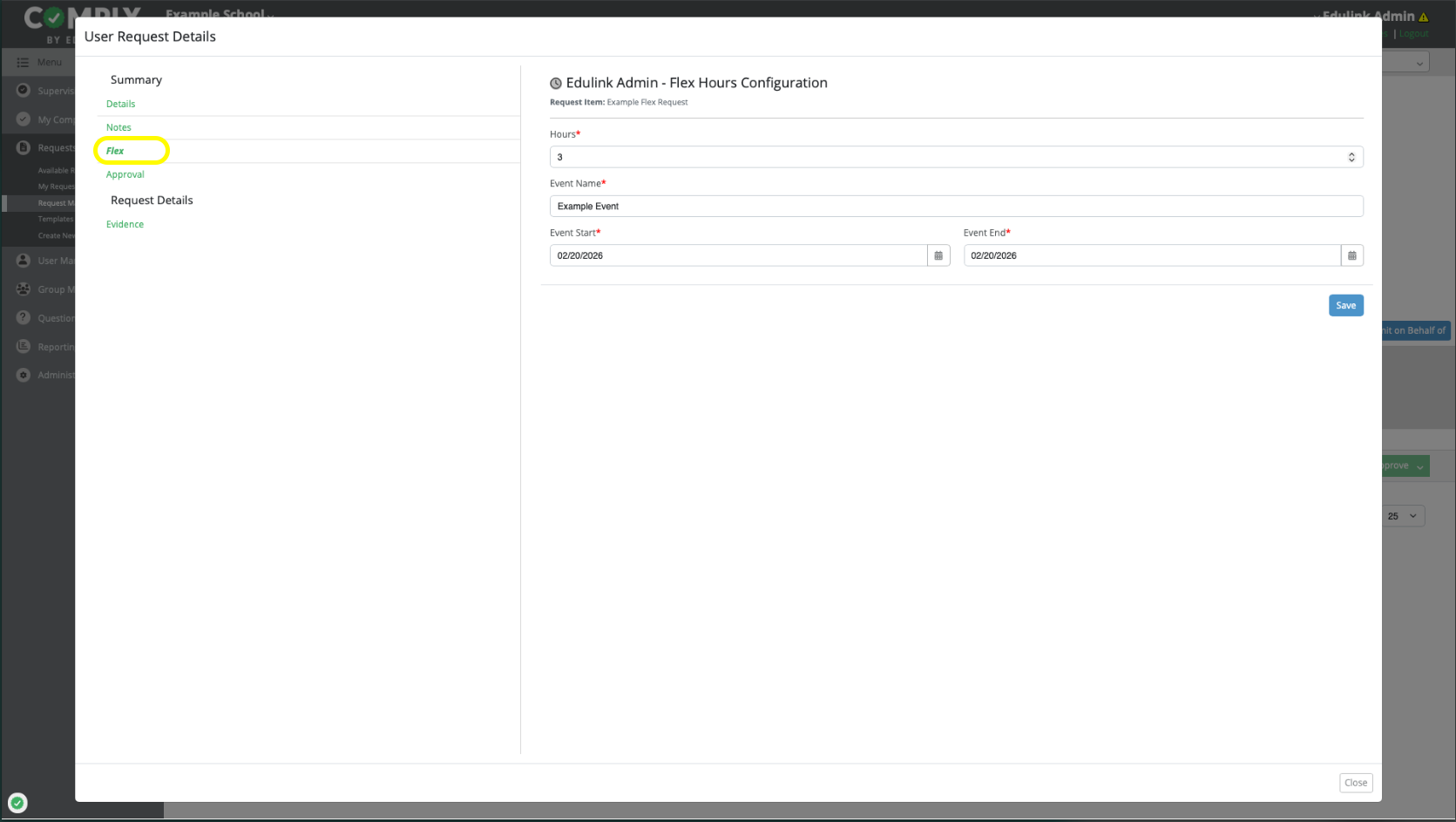
Note: The number of flex hours awarded to each user can be configured individually by clicking on the "Details" button to view the user details.
Where Can I See Flex Hours?
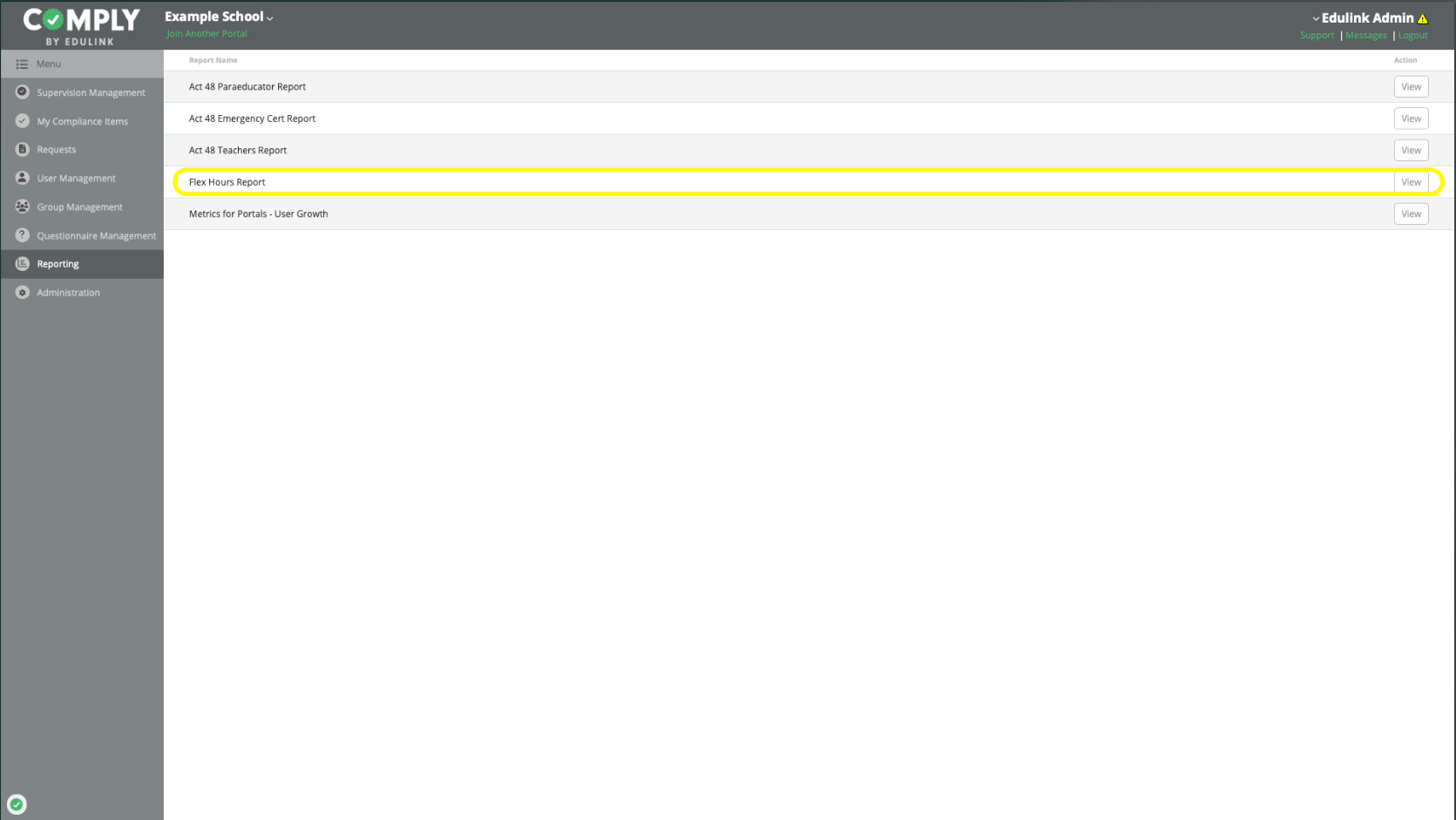
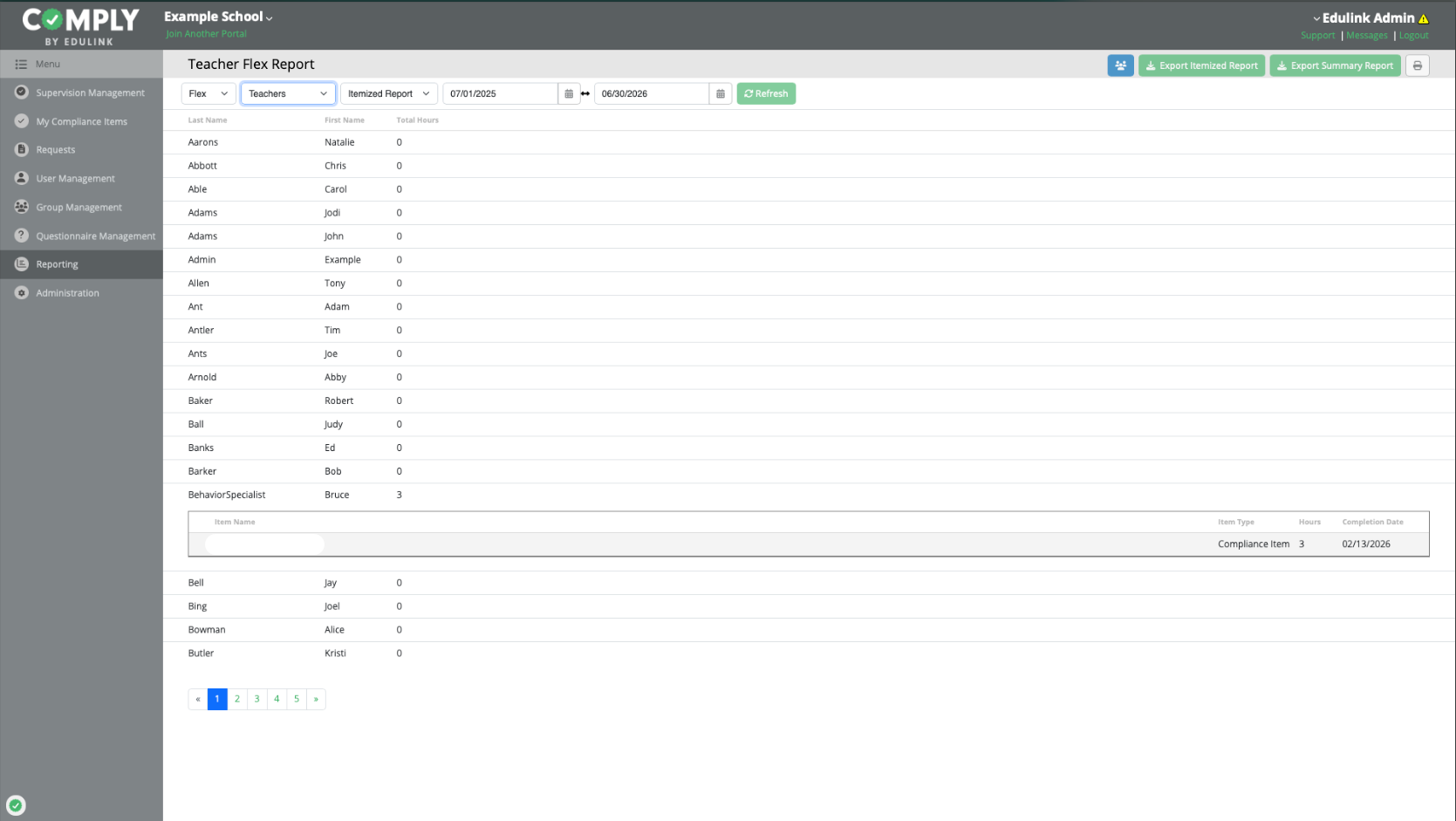
Flex Hours can be viewed relevant item roster details (see above). To see number of Flex Hours earned across multiple items (compliance and requests), you can do so from the Flex Hours Report.
Reporting: Export Flex and Act 48 Reports to CSV